TMI Color Temperature Correction
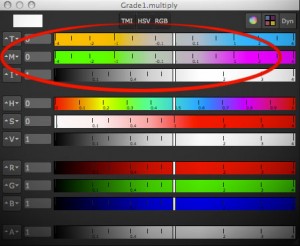 One of the things that I miss in Fusion whenever I have been using Nuke is a way to adjust colors using color temperature. Yes, there’s a white balance tool, but it’s a bit of a black box and it doesn’t have the kind of sliders known from Nuke (or even Photoshop’s RAW converter). I think Fusion’s tool is pretty accurate in terms of color science, but for eyeballing adjustments or creative tinting the other programs’ sliders are more useful.
Nuke provides the TMI system in its color picker so you can use it anywhere you see a color swatch. One parameter adjusts the color temperature by moving red and blue in different directions (you don’t have to specify a proper temperature like 5300K). The second parameter is a shift along the magenta/green axis.
Here’s a macro which allows you to tint an image using this system in Fusion. I don’t know if the formulas I’ve reverse-engineered are only used in Nuke or if there’s a standard for TMI (it’s kinda hard to find information about it). It goes without saying though that all of this is only valid in a linear color space. Reportedly it was also useful to cancel the effect of the ARRI Alexa’s white balance and CC Shift settings.
update August 2013:
I’m getting a bunch of Google hits for the TMI system, although I haven’t spelled out the formulas I’ve used for my macro. Here they are (as used by Nuke’s color picker)…
Color Temperature (T):
Red Gain = 1 – T/2, Blue Gain = 1 + T/2
Magenta/Green (M):
Red Gain = 1 + M/3, Green Gain = 1 – M*2/3, Blue Gain = 1 + M/3
Intensity (I):
RGB Gain = 1.0 + Intensity
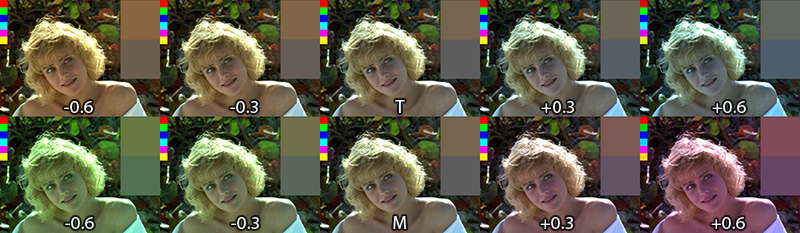
Download the macro here or view the help page on vfxpedia.
VFX Breakdown Effect (Breakdown)
I was pointed to an effects reel for “Wrath of the Titans” by Method Studios (you need to watch it on YouTube due to the usual licensing issues):
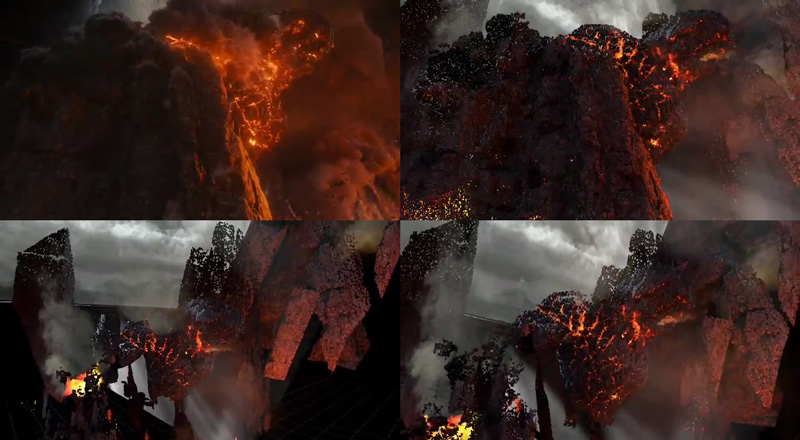
Stills from a vfx breakdown by Method Studios (not my work)
The shots look cool, but what was more interesting is the way they did the breakdown of their CG elements. Look at the camera moves at 0:14 or 1:17.
I’ve tried to dissect their technique using a Fusion comp and some random model I’ve downloaded from turbosquid (so don’t tell me it doesn’t look as cool as Kronos in the video above). The way I think this was done was by projecting the rendered passes back onto either real geometry or a recreation of the geometry using a world position pass. The latter is the only feasible solution for scenes with a high polygon count and can also be done as a particle cloud (see the “dissolving” rocks in the stills above).
Then, additional footage is brought in on image planes. Whether the footage was a 2D matte painting to begin with or a CG element doesn’t matter, for the breakdown it’s all treated like a 2D element. You can see this on the flat volumetric godrays.
To spice it up even more, they probably rendered additional passes especially for the breakdown (for example the wireframe pass) using the camera move designed for the breakdown shot. At this point you could also re-render your scene’s FX passes using the new camera move and treat the breakdown shot as if it was an original shot 🙂 Depends on how much work you wanna put into it.
Here’s a quick video that puts all the techniques together: particle cloud, projections, image planes and wireframe pass.
Mosaic Effect in Fusion
I’ve recorded another video tutorial for your viewing pleasure. It’s just a tiny effect, but the video shows that you can take even little tasks like this a bit further.
httpvh://www.youtube.com/watch?v=NL99jnhOzWk
Rocket Launch Reference Footage
This is an awesome video about an impressive feat of engineering. But I don’t just love the video and it’s voiceover from a technology-geek point of view. It’s also a great reference footage for rocket exhaust and the mayhem it causes. I would love to see more science-fiction authors take this into account when they allow space ships to launch and land as effortlessly as a taxi pulling up.
Watch it full-screen and turn on HD 720p!
Here’s another one: The sound track of a ride on a space shuttle booster rocket from its launch to its impact in the ocean.
Thanks to my colleague who showed me the aptly-named tumblr page FUCK YEAH SPACE EXPLORATION 🙂
Correcting Rolling Shutter in Fusion
eyeon has recently released its Dimension optical flow and stereo disparity toolset. I didn’t have a chance to test the stereo part yet, but since you can now calculate nice and crisp motion vectors, I’ve written a Fuse that can correct rolling shutter artifacts. Here’s a quick demo video:
You can get real-time performance on your GPU using OpenCL and as usual I’ve licensed my source code BSD-style if you want to tinker with it.
I haven’t had enough footage from different cameras to test the plugin thoroughly (just my iPhone and a Canon 5D Mark II). I also haven’t tested any other motion vector generators except for Dimension. Maybe Twixtor works as well, we’ll see…
Updated 2012-10-09: supports the rolling shutter method used by Syntheyes (center scanline is fixed)
 Download the plugin here: RollingShutter_v1_6.Fuse or head over to Vfxpedia.
Photo credits for icon: CC-BY Nayu Kim
Syntheyes Lens Distortion to 3DEqualizer
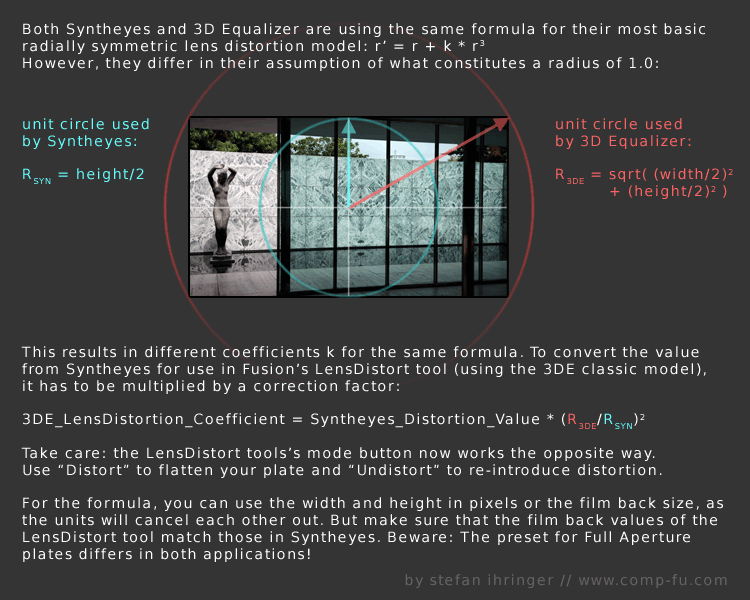
I’ve crunched a few numbers yesterday and I think I came up with a solution to convert the lens distortion coefficient calculated by Syntheyes to the one used by 3DEqualizer.
This is necessary since up until now, Fusion’s native LensDistort tool only supports the latter. Unfortunately, only the first coefficient can be used since 3DEqualizer’s formula differs for the higher order coefficient. You can download a tool script that does the calculations for you here:
Here’s the math behind:
Rendering rec709 in Fusion
This is part of a series of articles dealing with color workflows in Fusion. Other parts:
Linear Gamma Workflow in Fusion Part 1 and Part 2.
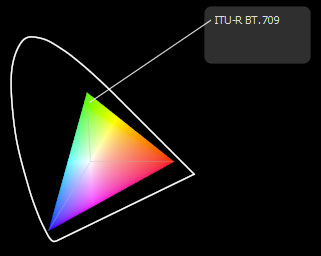
I’ve noticed a couple of Google hits for this topic. Maybe you’re interested in this because Fusion seems to lack a color space selector like Nuke has in its Write node? In Fusion the workflow boils down to using the Gamut tool where rec709 is called by its official name “ITU-BT R.709”. But as with everything in compositing, it makes sense to understand what you’re actually doing since in the end the “how to output rec709” question is just a matter of giving your client what he expects.
The rec709 standard encompasses much more than just the gray-scale gamma curve. It also specifies color primaries, white point and so on which would also affect the hue of your pixels. But usually, if somebody hands you his footage, telling you it’s in “rec709” he probably means that he exported it from his black box editing thingy and he wants the result to look neither brighter nor darker. So I’m mostly dealing with the proper gamma curve for rec709 in this post, not colorimetric mambo-jumbo that I’m still figuring out myself and that mostly concerns DOPs or colorists.
Option 1:
Source footage is a supposed rec709 mov and you’re not using a linear gamma workflow. Fusion won’t do anything to footage it loads in or saves out, so your workflow will simply be this:

Your end result will look the same as your source footage (except for the effect you’ve added). rec709 in, rec709 out. sRGB in, sRGB out. If it doesn’t, then it might be because you’re writing out movs in different codecs and Quicktime does its own unpredictable color shifting. Use file sequences instead. Also, if you’re comparing Fusion’s output to something else in Nuke, make sure both Read nodes are set to the same color space! By default, image sequences are interpreted as sRGB but movs as something else.
Option 2:
Same as before, but you’re working with linear gamma:
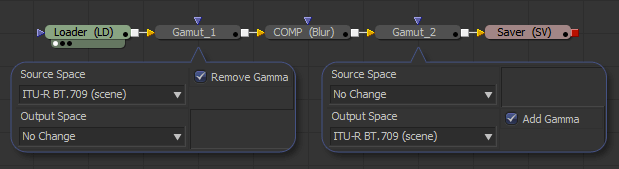
The first gamut tool allows you to bring in footage from a different color space as well (sRGB jpegs from a camera come to mind). This is the proper workflow for compositing and also the one used in Nuke.
Note: Fusion 6.4 added a new display-referred rec709 space that is used by ARRI’s Alexa color science. The regular rec709 color space has now been renamed to ITU-R BT.709 (scene).
Option 3:
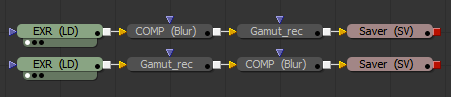
Linear CGI to rec709. First graph is for a linear workflow, the second one for compositing in rec709 directly. The latter isn’t correct, but useful if you’re afraid of this whole LUT thing…
Option 4:
Source footage is a dpx sequence in a logarithmic format (film or something new like Alexa Log C). Your client wants rec709 for reviews and editing (regardless of what the deliverable will be). You really should be working in a linear gamma workflow here:
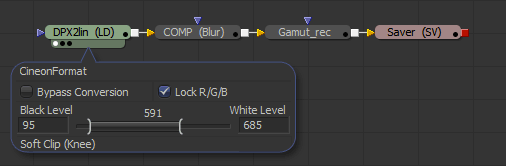
To convert from logarithmic to linear you’ll have to set the Loader’s conversion values to those specified by the guy who made the dpx files. If you’ve received Alexa Log C there’s a special conversion that needs to be done. Fusion 6.4 supports it in the Loader and CineonLog tools. In earlier versions you have to bypass Fusion’s log-to-lin conversion that happens in the Loader. Check this forum thread for an implementation of the gamma curve that Nuke is suggesting for Log C or create your own conversion LUTs on ARRI’s site.
The result of the loader will be linear, so a Gamut tool with output space set to ITU-R BT.709 and add gamma enabled results in rec709. Alexa footage will look less saturated than what an editor might see using his ARRI LUT. To fix this, set the Gamut tool’s source color space to Alexa’s wide gamut (requires Fusion 6.4 or later).
Option 4b:
You have also been given a film LUT which the editor would have used to convert logarithmic footage to rec709 on his side. He’s doing more than just a gamma correction so if you’re not doing the same he’ll think you screwed up because saturation and highlights look different. This flow assumes that his LUT expects a logarithmic input which gets converted to rec709:

Don’t use his LUT to convert your footage to rec709 before linearizing it. You’ll lose the dynamic range you could get from the dpx. Better guess some settings for the log2lin conversion in the Loader. As long as you’re using the same values in the CineonLog tool (which goes lin to log), you’re kinda safe.
Update: Ken Turner has more on how to use LUTs in Fusion.
