Keying Window Reflections, Smoke and Explosions
This post is about a keying technique that saved my ass on a couple of difficult shots recently.
Most keyers are all about pulling a matte from a green or blue screen plate which is then used to merge a despilled image onto the desired background. This technique has its limitations though and who doesn’t know the tedious task of combining and layering several keyers in different parts of an image until the result looks right.
There are, however, keying issues that are hard to get right even by combining multiple keyers: things like glass or glow. Both phenomena are additive in nature – they add light on top of what’s reflected from the green screen into the camera lens – which makes them different from semi-transparent things like smoke or motion blur. In compositing terms this means that there is no proper alpha value for them but since they change the color of the green screen behind them (reflections on a glass window are a good example) traditional keying algorithms will calculate an alpha value > 0 anyways.

click to enlarge
The technique I’d like to demonstrate is simple. I didn’t invent it, by the way. I first came across it in a post from the Shake mailing list years ago but didn’t fully understand it. A compositing artist on “Vanilla Sky” (if I remember correctly) said that he pulled a soft matte and used it to push the color-corrected background through the foreground, preserving grain and fine hair.
These are the steps you need to take:
- Use a color difference formula to pull a soft matte, which is similar to despilling: use the difference between green and the average of blue and red, or the difference between green and the maximum of blue and red.
- Instead of manipulating that matte until it’s fully black and white, use it as it is to add the background image onto the (despilled) foreground image. This will lead to a strange low-contrast mix of foreground an background. But here’s the trick:
- Crank up the contrast of the background image until the result looks right. This of course only works in floating point since it requires pixel values outside the 0..1 range.
 This technique will preserve edges perfectly as well as glow, reflections or smoke up to a degree where the greenscreen is but a tiny green tint in the background. On the other hand, it will also “imprint” any imperfections of your green screen into the result: folds, shadows, tracking markers, uneven lighting. This means that you either need to do some serious cleanup work and degraining beforehand or combine this technique with traditional keyers (e.g. just for fine hair, or inside a window pane).
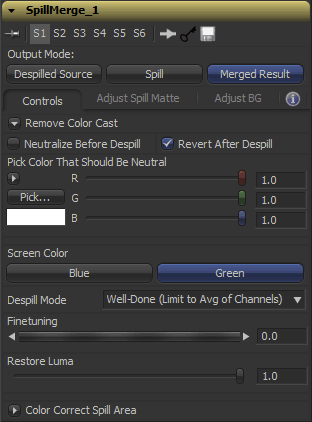
I’ve turned all of this into a handy Fusion macro. For Nuke, you can use the “Despill” gizmo from Luma Pictures, which served as an inspiration for the UI of my macro.
I’ve called the tool “SpillMerge” since it performs a despill first, then merges a background image into the despilled area (it basically treats the screen as a giant spill-affected area instead of trying to pull a solid black/white matte).
Download SpillMerge here or read the manual at vfxpedia.com.
Freeze Camera Script for Fusion
I’ve seen this in a Nuke pipeline recently, so I thought I’d rewrite it for Fusion: a script that copies an animated camera and freezes it at the current frame so you can use it for camera projections. Much faster than clicking “Remove Animation” on half a dozen controls 🙂
Download Freeze Cam.py (goes into Scripts:\Tool folder)
If you have customized your context menus, add this snippet to your Fusion.menus so you can access this script quickly when right-clicking a Camera3D tool:
Camera3D = {
   { "Freeze Projection", [[@Scripts:Tool\Freeze Cam.py]] },
},
Also goes along well with my other script, which quickly aligns cards in 3D space if you have a point cloud: 3-Point-Imageplane (includes screencast)
15 Minutes of Fame
I’ve been interviewed twice in recent weeks.
Eyeon Software asked me about development aspects of Fusion (scripting, fuses, macros) and Digital Media World allowed me to give some insights into my career path as a VFX artist. I’ve also talked a bit about the soft skills that in my opinion make life easier on VFX jobs: tolerating frustration and being able to communicate well between teams (e.g. editorial and VFX)
Tool Color Labels for Fusion
So… Fusion doesn’t colorize its nodes as extensively as Nuke does. It only has basic color cues for loaders, savers, masks, particles, 3D. That’s all good but maybe you get bored or confused with the 2D part of your comp which is mostly gray. There is a tool colorization script that ships with Fusion, but it’s just a color picker.
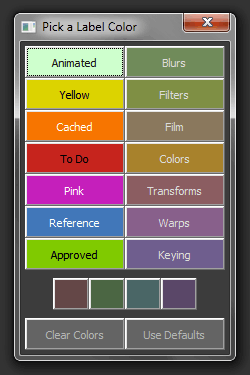 Even before Nuke was widely available on the market, I had written a script to tag nodes with a small set of pre-defined labels – inspired by Mac OS. It was one of my first Fusion scripts and my first shot at IUP for user interfaces as well and I’ve just given it a larger update.
A while ago, Gregory Chalenko (aka Gringo) has published some tool defaults on vfxpedia. Besides modifying the default values of a slider here and there, they also define colors for tools based on their function in a way that reminds one of Nuke. Blurs, transform tools, warps, color corrections… the whole color scheme is nicely desaturated and doesn’t distract your eyes. My ToolColorLabels script on the other hand always had bright highlight colors that were meant to make important nodes stand out.
Version 2.0 of ToolColorLabels not only has some predefined colors taken from Gringo’s color scheme. It also has a new button that colorizes nodes based on what is defined in their default setting files. This is useful if you open a comp that hasn’t been created with your default color scheme or you recently made changes or additions to the files in your Defaults: directory.
The small buttons at the bottom only act on Underlay tools so you can colorize them without affecting regular tools (that are selected along the Underlay once you click it). Take a look at the top of the script, you can customize the colors there as well as disable the second column of swatches in case you want to have less buttons.
Rolling Shutter Update
I’ve just updated my rolling shutter removal Fuse for Fusion. It implements the technique used by Syntheyes, where the center scanline is assumed to have been taken at the current frame (instead of the topmost scanline).
Here’s a white paper that explains the technique, but most of it isn’t applicable to my Fuse. In fact, the author of Syntheyes advises against messing with your footage in order to remove the effects of rolling shutter. My Fuse isn’t intended to be used on raw footage (pre match moving). Instead, it’s a finishing tool to reduce/remove distorting in case your shot exhibits unwanted wobbling due to the rolling shutter issue.
Object Removal Video Tutorial
My next video tutorial for Fusion is online. It’s about removing objects (a shadow in this case) from a shot using a 3D matchmove, some scene geometry and automated white-balance matching. You can download the complete project and footage as well. Yeah, it’s a home video of mine but the technique has proven valuable on various shows already.
It can also be easily transferred to Nuke.
Related to this: freezing cameras for projection setups just got a whole lot easier with this script.
Also slightly related to this: on some other blog I’ve found a link to these vintage VFX educational videos. The whole thing has an 80s air to it but the names of the presenters should ring a bell 🙂 Well-known gurus like Ron Brinkmann and Stu Maschwitz are among them.
Object Removal Teaser
This is an old post. Head over to the final version of this tutorial.
I’m in the process of recording another video tutorial about camera projections. This time, I’ll demonstrate a real-life example of how to remove objects (a shadow on the ground in this case) from a shot. Ok, it’s a home video of mine, not a real shot from one of my projects. But I have employed this technique on actual shows and this shaky video of mine is much more challenging than a perfect film scan.
Here’s a preview:
